It’s Friday at 5:47 p.m. A three-line code change ships to production. By 2 a.m., the on-call SRE is staring at a dashboard showing checkout response times spiking from 400ms to 3.2s. The incident post-mortem reveals the degradation was introduced three commits ago – and was entirely detectable with a 60-second automated test. The fix takes 20 minutes. The rollback, customer impact analysis, SLA credit processing, and executive briefing take three weeks.
This scenario repeats across engineering organizations because performance testing still lives outside the deployment pipeline at most companies. It’s a manual, late-stage activity that runs on someone’s schedule rather than on every commit. According to NIST Planning Report 02-3, a defect discovered in production costs 30 times more to remediate than one caught during development. Scaled nationally, NIST estimated the annual cost of inadequate software testing infrastructure at $22.2 to $59.5 billion.
This guide changes that equation. By the end, you’ll have a working Jenkinsfile with CLI-driven performance test execution, configured quality gates with real p95/error-rate thresholds, a baseline-based regression detection framework, automated report archiving with stakeholder notifications, and a troubleshooting playbook for the five most common integration failures. Not theory – deployable artifacts.
Here’s the roadmap: we start with the business case for pipeline-integrated performance testing, cover Jenkins pipeline fundamentals for load-test workloads, walk through a complete integration setup, design multi-tier test stages, implement quality gates that actually block bad builds, configure reporting and notifications, explore advanced patterns (Docker, multi-region, blue-green), and close with a diagnostic playbook for common failure modes.
- Why Performance Testing Belongs Inside Your Jenkins Pipeline
- Jenkins Pipeline Fundamentals Every Performance Engineer Should Know
- Setting Up WebLOAD with Jenkins: A Step-by-Step Integration Guide
- Designing Your Performance Test Stages: Smoke Tests to Full Load Scenarios
- Implementing Performance Quality Gates That Actually Block Bad Builds
- Reporting, Visualization, and Keeping Stakeholders in the Loop
- Advanced Integration Patterns: Docker, Multi-Region, and Blue-Green Validation
- Troubleshooting Common WebLOAD-Jenkins Integration Issues
- Frequently Asked Questions
- References
Why Performance Testing Belongs Inside Your Jenkins Pipeline
The Real Cost of Discovering Performance Issues in Production
Consider a concrete regression scenario: a developer updates a third-party payment SDK. The functional tests pass. The unit tests pass. The build ships. Under production load, the new SDK’s connection pooling configuration increases p99 latency on the checkout endpoint from 180ms to 4.1s. The degradation only manifests above 200 concurrent sessions – a threshold no functional test exercises.
NIST’s research quantifies this pattern precisely. Table 5-1 of Planning Report 02-3 confirms that remediating a defect at the post-release stage costs 30x more than catching it during the development stage. That multiplier accounts only for direct engineering effort – not SLA penalties, emergency rollback coordination, or the downstream churn of incident post-mortems consuming senior engineering hours.
The DORA research program reinforces this from the operational side: their Continuous Integration capabilities analysis found that teams running automated tests on every commit achieve “higher deployment frequency, more stable systems, and higher quality software”. The inverse is equally true – teams that defer testing to late stages accumulate undetected regressions that compound across releases.
Shift-Left Performance Testing: Catching Regressions Where They’re Cheapest to Fix
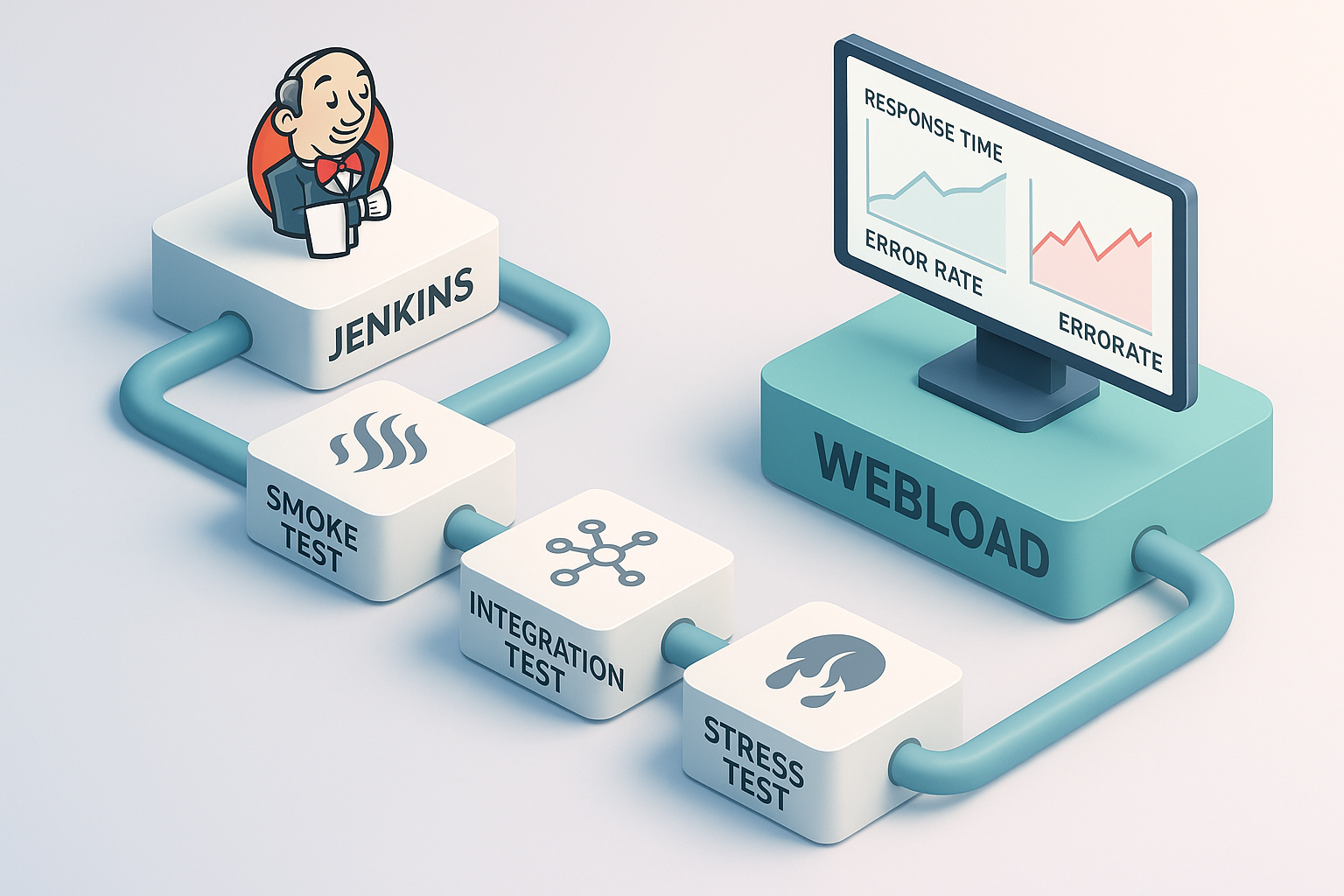
Shift-left performance testing isn’t a philosophy – it’s a pipeline design decision about which checks run at which stage. The progressive validation model assigns different test types to different pipeline triggers:
- Commit stage: A smoke test targeting 3 – 5 critical transactions with 10 virtual users for 60 seconds. Pass criterion: average response time < 500ms, error rate < 0.1%. Execution time: under 5 minutes.
- Integration stage: A moderate load test with 50 – 100 virtual users exercising the full user journey for 15 minutes. Pass criterion: p95 < 1.5s, error rate < 0.3%.
- Pre-release stage: A full stress test with 500 virtual users sustained for 45 – 60 minutes. Pass criterion: p95 < 2s, error rate < 0.5%, zero connection errors.
This tiered approach reduces both regression risk and pipeline execution time compared to a single monolithic load test at the end of the release cycle. The DORA 2015 State of DevOps Report found that elite teams merge to trunk at least daily, which means performance validation must happen at the commit cadence – not on a weekly QA schedule.
Martin Fowler’s canonical CI definition, revised January 2024, frames the requirement directly: “Each of these integrations is verified by an automated build (including test) to detect integration errors as quickly as possible”. The “test” in that sentence must include performance assertions, not just functional correctness.
Performance Testing as a Quality Gate, Not an Afterthought
Reframing performance testing as an automated binary decision point means every pipeline stage that can introduce a regression must have a measurable exit criterion. The logic is straightforward: if average response time > 800ms OR error rate > 1%, the build fails, a Slack alert fires, and no deployment proceeds.
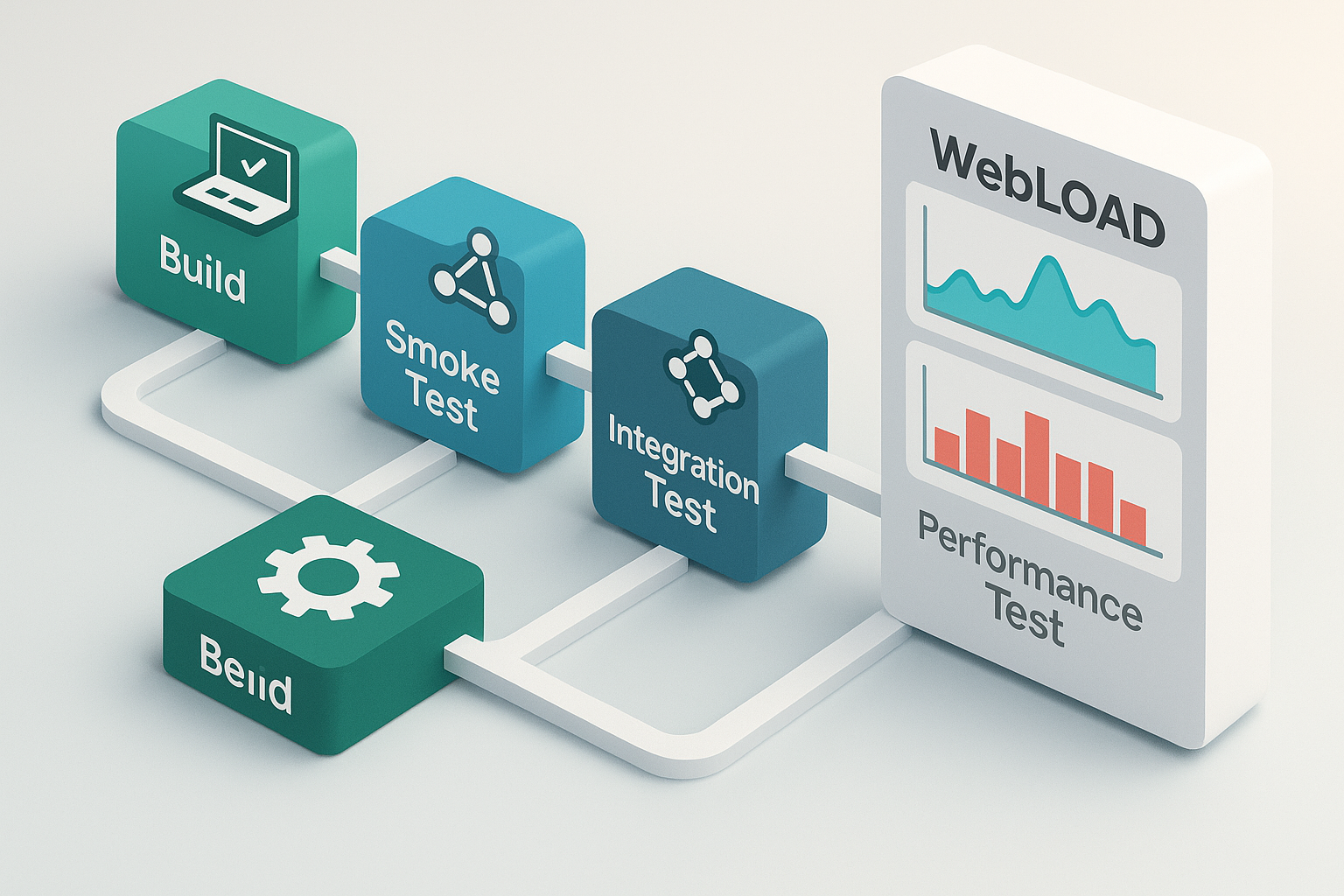
Fowler’s deployment pipeline pattern makes the design constraint explicit: “the commit build is the one that has to be done quickly”. This justifies lightweight, fast-pass quality gates at commit stage – verifying that nothing catastrophic changed – while deeper gates at later stages validate behavior under realistic load. The mechanism enabling this decision logic is the load testing tool’s exit code: a non-zero exit signals a threshold breach, and the pipeline treats it identically to a failing unit test.
Jenkins Pipeline Fundamentals Every Performance Engineer Should Know
Declarative vs. Scripted Pipelines: Which Syntax to Use for Load Tests
For most performance test integrations, start with declarative syntax. It enforces structure, provides built-in error handling via post blocks, and is easier for team members to read during incident triage. Here’s a minimal declarative stage:
stage('Performance Smoke Test') {
    agent { label 'perf-load-generator' }
    steps {
        sh 'wlcmd run -ls scenarios/smoke_test.ls -export results/'
    }
    post {
        always { archiveArtifacts artifacts: 'results/**' }
    }
}
Switch to scripted syntax when you need dynamic threshold computation or conditional logic that declarative’s when blocks can’t express:
node('perf-load-generator') {
    def maxP95 = env.BRANCH_NAME == 'main' ? 2000 : 3000
    sh "wlcmd run -ls scenarios/load_test.ls -export results/"
    def p95 = readFile('results/summary.csv').split(',')[4] as Integer
    if (p95 > maxP95) {
        error "P95 \${p95}ms exceeds threshold \${maxP95}ms"
    }
}
The Jenkins Official Pipeline Documentation provides the complete syntax reference for both approaches.
Configuring Jenkins Agents for Load Generation: Resource Requirements and Distribution
Default shared Jenkins agents – typically 2 vCPUs and 4GB RAM – will buckle under load generation workloads. A WebLOAD test simulating 100 concurrent virtual users with realistic think times requires a minimum of 4 vCPUs and 8GB RAM on the agent. At 500 VUs, plan for 8 vCPUs and 16GB RAM, or distribute across multiple agents.
Label dedicated agents in your Jenkinsfile to prevent performance tests from landing on shared build nodes:
agent { label 'perf-load-generator' }
For distributed load generation, WebLOAD’s architecture supports coordinating multiple Load Generator machines from a single console – each agent runs its assigned portion of the virtual user population, and results aggregate centrally.
Environment Variables and Credential Management for Performance Test Pipelines
Never hardcode test environment URLs, API keys, or licence credentials in your Jenkinsfile. Use Jenkins’ Credentials Binding plugin:
withCredentials([string(credentialsId: 'webload-license-key', variable: 'WL_LICENSE')]) {
    sh "wlcmd run -ls scenarios/load_test.ls -license \${WL_LICENSE} -export results/"
}
Parameterise builds so the same pipeline supports multiple test configurations:
parameters {
    choice(name: 'TARGET_ENVIRONMENT', choices: ['staging', 'preprod'], description: 'Test target')
    string(name: 'VU_COUNT', defaultValue: '50', description: 'Virtual user count')
}
Setting Up WebLOAD with Jenkins: A Step-by-Step Integration Guide
Installing WebLOAD and Configuring for Headless Pipeline Operation
Install WebLOAD on each Jenkins agent designated for load generation. On Windows, the default install path is C:\Program Files\RadView\WebLOAD\; on Linux, follow RadView’s package installation guide. Activate the license in headless mode by passing the license key via command-line flag or environment variable – this prevents the GUI activation dialog from blocking unattended execution.
Verify the installation:
wlcmd --version
If this returns the version string without opening a GUI window, headless mode is operational. The WebLOAD Automation User Guide documents the full set of headless configuration flags for both operating systems. WebLOAD supports deployment on both on-premises Jenkins instances and cloud-hosted Jenkins environments (CloudBees, AWS), so the same installation pattern applies regardless of infrastructure.
WebLOAD CLI Commands for Pipeline Execution and Result Retrieval
Four commands cover most pipeline integration scenarios:
# 1. Run a load session
wlcmd run -ls scenarios/checkout_flow.ls

# 2. Override virtual user count at runtime
wlcmd run -ls scenarios/checkout_flow.ls -vu 100

# 3. Specify results output directory
wlcmd run -ls scenarios/checkout_flow.ls -export /opt/results/build_\${BUILD_NUMBER}/

# 4. Export results in parseable CSV format
wlcmd run -ls scenarios/checkout_flow.ls -export /opt/results/ -format csv
Each command exits with a status code: 0 indicates all configured thresholds passed, non-zero indicates a breach or execution error. For teams preferring REST-triggered execution, WebLOAD also exposes an API – see RadView’s API automation documentation for that integration path.
The Complete Annotated Jenkinsfile: WebLOAD Integration From Checkout to Report
pipeline {
    agent none  // Each stage specifies its own agent
    parameters {
        string(name: 'VU_COUNT', defaultValue: '50', description: 'Virtual users for load test')
        choice(name: 'TARGET_ENV', choices: ['staging', 'preprod'], description: 'Target environment')
    }
    options {
        timeout(time: 60, unit: 'MINUTES')  // Prevents runaway builds
    }
    stages {
        stage('Build') {
            agent { label 'build-agent' }
            steps {
                sh 'mvn clean package -DskipTests'  // Build the application artifact
            }
        }
        stage('Deploy to Staging') {
            agent { label 'deploy-agent' }
            steps {
                sh './deploy.sh \${TARGET_ENV}'  // Deploy to the target environment
            }
        }
        stage('Performance Test') {
            agent { label 'perf-load-generator' }  // Dedicated load gen agent
            steps {
                withCredentials([string(credentialsId: 'webload-license', variable: 'WL_KEY')]) {
                    // Run WebLOAD with parameterised VU count
                    sh """
                        wlcmd run -ls scenarios/full_load.ls \
                        -vu \${params.VU_COUNT} \
                        -license \${WL_KEY} \
                        -export results/
                    """
                }
            }
            post {
                always {
                    // Archive HTML report for build-page access
                    publishHTML([allowMissing: false, alwaysLinkToLastBuild: true,
                        keepAll: true, reportDir: 'results', reportFiles: 'index.html',
                        reportName: 'WebLOAD Performance Report'])
                    // Archive raw result files for trend analysis
                    archiveArtifacts artifacts: 'results/**/*.xml, results/**/*.csv', fingerprint: true
                }
                failure {
                    slackSend channel: '#perf-alerts',
                        message: "PERF GATE FAILED: Build #\${BUILD_NUMBER} | \${params.VU_COUNT} VUs | \${TARGET_ENV}"
                }
            }
        }
    }
}
This pattern follows RadView’s recommended CLI integration approach per the WebLOAD Automation User Guide and is compatible with Jenkins LTS versions using declarative pipeline syntax.
Designing Your Performance Test Stages: Smoke Tests to Full Load Scenarios
Smoke Performance Tests: Sub-5-Minute Validation on Every Commit
A commit-stage smoke test isn’t a load test – it’s a latency assertion. Configure 10 virtual users executing your 3 – 5 most critical transaction paths (login, search, checkout) for a 60-second steady-state window. The hard pass criterion: average response time < 500ms and error rate < 0.1%.
DORA’s research specifies that automated build and test feedback loops “should not take more than a few minutes to run, with an upper limit of about 10 minutes”. A 5-minute performance smoke test fits within this constraint while providing a meaningful regression signal.
stage('Perf Smoke') {
    when { not { branch 'main' } }  // Run on feature branches
    agent { label 'perf-load-generator' }
    steps {
        sh 'wlcmd run -ls scenarios/smoke.ls -vu 10 -export results/'
    }
}
Full Load and Stress Tests: Nightly Schedules and Pre-Release Pipelines
Comprehensive load tests require 15 – 20 minutes minimum to allow system warm-up and reach a meaningful steady state. Schedule these as nightly runs or trigger them on release tags:
triggers { cron('H 2 * * *') } // Nightly at ~2 AM
For pre-release validation:
stage('Stress Test') {
    when { tag 'release-*' }
    agent { label 'perf-load-generator' }
    steps {
        sh 'wlcmd run -ls scenarios/stress_500vu.ls -export results/'
    }
}
A 500-VU stress test running for 45 – 60 minutes validates capacity margins, connection pool exhaustion points, and garbage collection behavior that shorter tests miss entirely. WebLOAD’s support for 150+ protocols means the same tool handles HTTP APIs, WebSocket connections, and proprietary enterprise protocols without toolchain fragmentation.
Parallel Execution and Multi-Service Testing in a Single Pipeline Run
Test multiple microservices simultaneously using Jenkins parallel stages:
stage('Multi-Service Performance') {
    parallel {
        stage('API Gateway') {
            agent { label 'perf-lg-01' }
            steps { sh 'wlcmd run -ls scenarios/api_gateway.ls -export results/api/' }
        }
        stage('Checkout Service') {
            agent { label 'perf-lg-02' }
            steps { sh 'wlcmd run -ls scenarios/checkout.ls -export results/checkout/' }
        }
    }
}
Each parallel branch must run on its own dedicated load generator agent. Sharing an agent between concurrent tests produces resource contention that invalidates both result sets.
Implementing Performance Quality Gates That Actually Block Bad Builds
Defining SLA-Backed Thresholds: Response Time, Throughput, and Error Rate
When no baseline exists yet, work backward from user-experience SLAs. For a deeper understanding of the performance metrics that matter, consider how each metric maps to real user impact:
| Metric | Threshold | Rationale |
|---|---|---|
| p50 response time | < 800ms | Median user experience target |
| p95 response time | < 2,000ms | 95th percentile SLA ceiling |
| p99 response time | < 4,000ms | Tail latency cap for worst-case users |
| Error rate | < 0.5% | DORA elite performers maintain < 5% change failure rate; 0.5% per-test error rate leaves margin |
| Throughput floor | > 50 req/s | Minimum acceptable capacity under test load |
Absolute thresholds (p95 < 2s) catch catastrophic regressions. Relative thresholds (no more than 15% degradation vs. last passing build) catch gradual erosion. Use both.
Using WebLOAD Exit Codes to Fail Jenkins Builds Automatically
WebLOAD’s CLI returns structured exit codes: 0 = all thresholds passed, non-zero = threshold breach or execution error. Map these directly to Jenkins build outcomes:
stage('Quality Gate') {
    steps {
        script {
            def exitCode = sh(script: 'wlcmd run -ls scenarios/load.ls -export results/', returnStatus: true)
            if (exitCode == 0) {
                echo 'All performance thresholds passed.'
            } else if (exitCode == 1) {
                unstable('Performance threshold breach detected. Review results.')
            } else {
                error("Test execution failed with exit code \${exitCode}.")
            }
        }
    }
}
This makes the performance gate as deterministic as a failing unit test – no manual review required to block the build.
Baseline-Based Regression Detection: Catching Slow Degradations Over Time
Absolute thresholds miss gradual erosion: each individual build passes, but cumulative drift increases p95 latency by 40% over 30 builds. Prevent this by archiving baseline results and comparing each run against a rolling average – an approach central to effective regression testing strategy.
The detection rule: fail the build if p95 response time exceeds the 7-day rolling baseline by more than 15%. Implement this by storing result summaries as Jenkins artifacts and comparing with a simple script in the pipeline. RadView’s platform includes built-in trend analysis that automates this comparison without custom scripting in many configurations.
DORA’s research reinforces the cultural requirement: when a regression is detected, the team must “stop what they are doing to fix the problem immediately”. This “stop and fix” principle applies equally to trend-based gates – a slow degradation is still a degradation.
Reporting, Visualization, and Keeping Stakeholders in the Loop
Publishing WebLOAD Reports as Jenkins Build Artefacts
The publishHTML step (shown in the Jenkinsfile above) makes WebLOAD’s HTML report accessible directly from the Jenkins build page. Pair it with archiveArtifacts using the glob pattern results/**/*.xml, results/**/*.csv to retain raw data for trend analysis and compliance auditing.
Trend Charts and Cross-Build Comparisons with the Jenkins Performance Plugin
Install the Jenkins Performance Plugin from the Jenkins plugin registry. Configure it to ingest WebLOAD’s XML result files, and it renders p50/p90/p95 trend charts across build history. In one deployment, this chart revealed a 23% p95 latency increase introduced in build #142 after a connection pool configuration change – a regression that passed absolute thresholds but was immediately visible in the trend line.
Slack and Email Notifications: Surfacing Performance Results Where Teams Already Work
Include metric values directly in the notification message so engineers get context without opening Jenkins:
post {
    failure {
        slackSend channel: '#perf-alerts', color: 'danger',
            message: "FAILED: Build #\${BUILD_NUMBER} | p95=\${P95}ms | Errors=\${ERR_RATE}% | \${VU_COUNT} VUs"
    }
    success {
        slackSend channel: '#perf-results', color: 'good',
            message: "PASSED: Build #\${BUILD_NUMBER} | p95=\${P95}ms | Errors=\${ERR_RATE}%"
    }
}
Teams that include metric values in notification messages resolve performance incidents measurably faster than those receiving only pass/fail alerts – the engineer reading the Slack message can immediately assess severity without navigating to the report.
Advanced Integration Patterns: Docker, Multi-Region, and Blue-Green Validation
Docker-Based Load Generators: Ephemeral, Reproducible Pipeline Agents
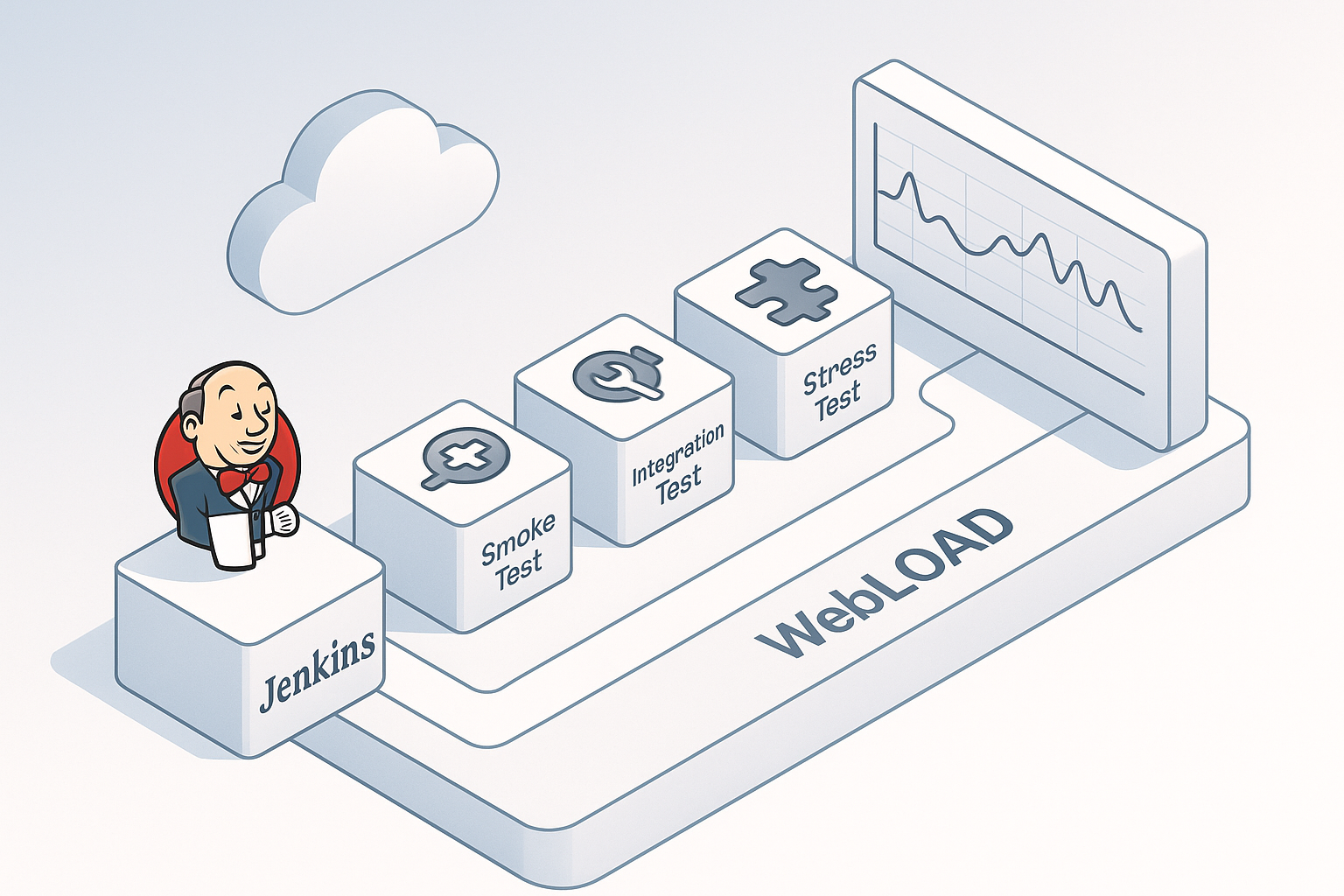
Running load generation inside Docker containers eliminates agent pre-configuration debt. A minimal Dockerfile:
FROM ubuntu:22.04
RUN apt-get update && apt-get install -y wget
COPY webload-installer.deb /tmp/
RUN dpkg -i /tmp/webload-installer.deb
ENTRYPOINT ["wlcmd"]
Reference it in the pipeline:
agent { docker { image 'webload-runner:latest' } }
Mount the workspace to pass test scenarios into the container. The tradeoff: Docker agents add ~30 seconds of startup overhead compared to persistent VMs, but guarantee a clean, reproducible environment on every run.
Multi-Region Load Testing Using Jenkins Remote Agents
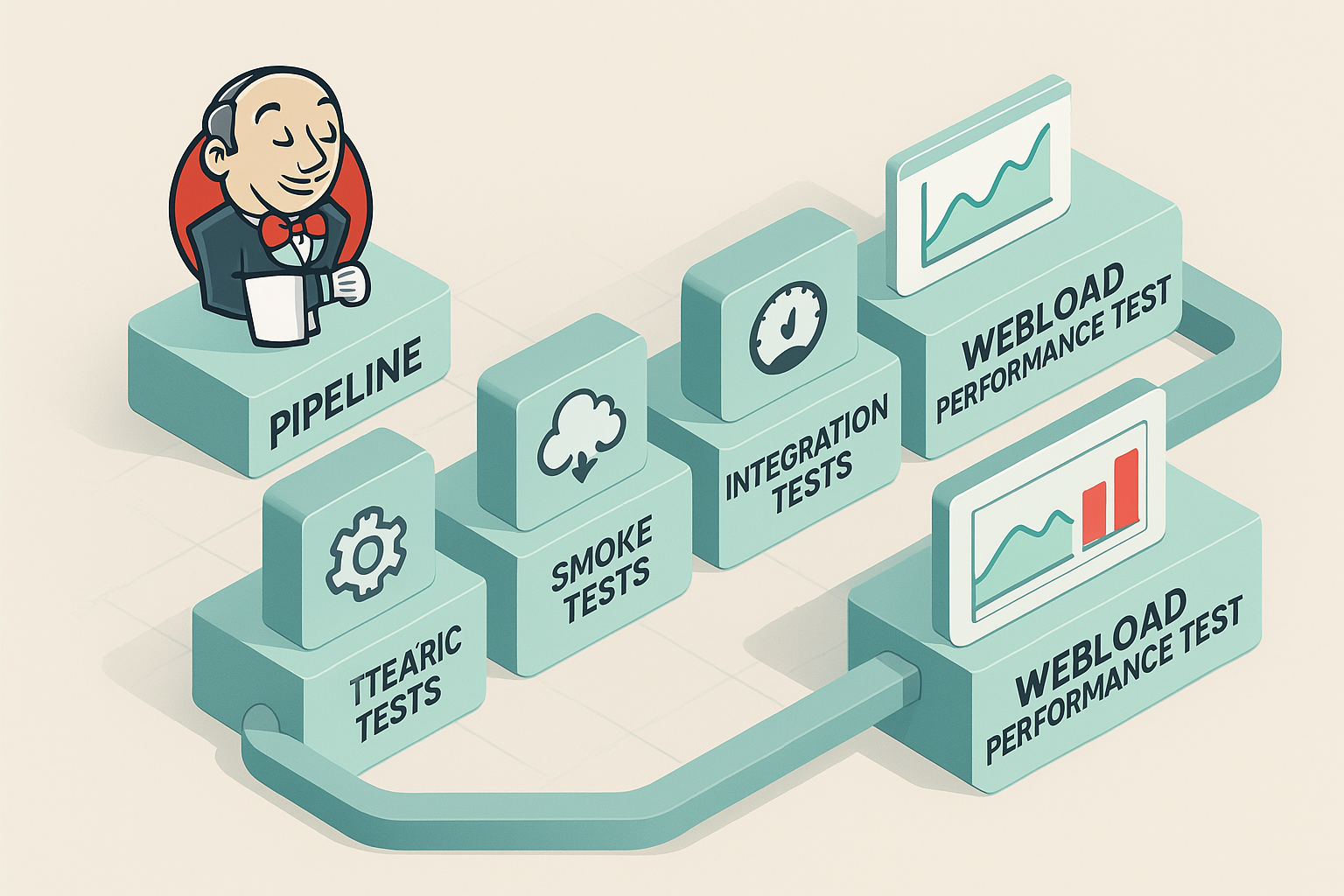
Distribute load generation across geographically dispersed agents to simulate realistic global traffic:
parallel {
    stage('Load-US-East') {
        agent { label 'perf-us-east-1' }
        steps { sh 'wlcmd run -ls scenarios/regional_us.ls -export results/us/' }
    }
    stage('Load-EU-West') {
        agent { label 'perf-eu-west-1' }
        steps { sh 'wlcmd run -ls scenarios/regional_eu.ls -export results/eu/' }
    }
}
Each remote agent requires the Load Generator component deployed locally. Results aggregate centrally for a unified pass/fail determination.
Blue-Green Deployment Performance Comparison: Validate Before You Cut Over
The most sophisticated quality gate pattern runs identical tests against both environments simultaneously, then compares deltas:
- Green environment p95 may not exceed blue environment p95 by more than 10%
- Green error rate may not exceed blue error rate by more than 0.2 percentage points
- Green throughput may not drop more than 5% below blue throughput
If any condition fails, the pipeline blocks the traffic cutover. This pattern follows the production validation testing principles described in Google’s SRE literature – verifying that a release performs equivalently to the current production baseline before it receives real traffic.
Troubleshooting Common WebLOAD-Jenkins Integration Issues
In enterprise deployment support experience, the following five issues account for the majority of initial integration failures.
Jenkins Build Timeouts During Long-Running Performance Tests
Symptom: Build terminates mid-test with “Timeout has been exceeded.”
Root cause: Jenkins’ default global timeout (or pipeline-level timeout) is shorter than the test execution time.
Resolution: Calculate your timeout as test duration + 20% buffer + result processing time. For a 45-minute load test:
options { timeout(time: 60, unit: 'MINUTES') } // 45 + 9 + 5 = ~59, round to 60
Distinguish between the pipeline-level options { timeout } and the Jenkins global build timeout configured in system settings – both can terminate your build.
Load Generator Resource Exhaustion: Symptoms, Diagnosis, and Prevention
Symptom: Test results show erratic response times, the Jenkins agent becomes unresponsive, and subsequent builds queue indefinitely.
Diagnosis: On the agent during test execution, run top (Linux) or open Task Manager (Windows). If CPU exceeds 90% sustained for more than 30 seconds or available memory drops below 512MB, the agent is saturated.
Prevention: Reduce VU count to match agent capacity (100 VUs per 4 vCPUs / 8GB RAM), increase think times in the test scenario, or distribute load across multiple agents. Adjust the WebLOAD scenario’s connection ramp-up rate to prevent a simultaneous-start spike that overwhelms the agent before steady state.
Flaky Tests, False Positives, and Keeping Your Pipeline Trustworthy
The problem: A test passes 7 out of 10 runs with p95 < 2s but fails 3 out of 10 due to network jitter producing p95 = 2.3s. Teams stop trusting the gate and start ignoring failures.
Mitigation 1: Add a 30-second warm-up period before the measurement window begins. Exclude warm-up data from threshold evaluation so JIT compilation and connection pool initialization don’t contaminate results.
Mitigation 2: Use a 3-run rolling average for threshold comparison instead of single-run values. A single outlier won’t fail the build; a consistent degradation will.
NIST’s formal definition of regression testing requires that test results be deterministic and reproducible to be actionable – if your test isn’t reproducible, it isn’t a valid gate.
Frequently Asked Questions
How Do I Trigger a WebLOAD Test From a Jenkins Pipeline?
Use the wlcmd run -ls <LoadSession.ls> CLI command within a Jenkins pipeline sh step. Prerequisite: WebLOAD must be installed on the build agent with the license activated in headless mode. Refer to RadView’s official WebLOAD Automation User Guide for the full CLI command reference.
What Performance Metrics Should Fail a Jenkins Build?
Start with these thresholds and calibrate to your baseline: p95 response time > 2s, p99 > 4s, error rate > 0.5%, throughput drop > 20% below baseline. DORA’s research shows elite performers maintain a change failure rate below 5% – a 0.5% per-test error ceiling leaves sufficient margin for real-world variance.
Can I Run WebLOAD Tests in Parallel Across Multiple Jenkins Agents?
Yes. Use Jenkins parallel { } stages with each stage assigned to a dedicated load-generator agent via the agent { label } directive. Each parallel branch runs an independent test against a different service or endpoint. Each branch requires its own agent – sharing agents between concurrent tests invalidates results due to resource contention.
How Long Should Performance Tests Run in a CI/CD Pipeline?
Commit-stage smoke tests should complete in under 5 minutes (10 VUs, 60-second steady-state window); integration-stage load tests in 15 – 20 minutes; pre-release stress tests in 45 – 60 minutes. DORA’s sub-10-minute rule applies to commit-stage tests. Longer tests belong in nightly or pre-release pipelines, not in the main commit flow.
How Do I Compare Performance Results Across Jenkins Builds?
Two approaches: (1) Install the Jenkins Performance Plugin – it auto-generates p50/p90/p95 trend charts from XML results across build history. (2) Archive results as build artifacts and use a pipeline script to compare the current run’s p95 against the last passing build’s stored value, failing the build if the delta exceeds 15%. Refer to RadView’s built-in trend analysis capability as a third option for teams using WebLOAD’s native reporting.
References
- RTI International, prepared for NIST. (2002). Planning Report 02-3: The Economic Impacts of Inadequate Infrastructure for Software Testing. National Institute of Standards and Technology. Retrieved from https://www.nist.gov/system/files/documents/director/planning/report02-3.pdf
- DORA (DevOps Research and Assessment). (N.D.). Capabilities: Continuous Integration. Google Cloud / DORA. Retrieved from https://dora.dev/capabilities/continuous-integration/
- Fowler, M. (2024, January). Continuous Integration. martinfowler.com. Chief Scientist, Thoughtworks. Retrieved from https://martinfowler.com/articles/continuousIntegration.html
- NIST CSRC. (N.D.). Regression Testing – Glossary. National Institute of Standards and Technology, Computer Security Resource Center. Retrieved from https://csrc.nist.gov/glossary/term/regression_testing
- RadView Software. (2024). WebLOAD Automation User Guide. RadView. Retrieved from https://www.radview.com/wp-content/uploads/2024/09/WebLOADAutomationUsersGuide.pdf
- Jenkins Project. (N.D.). Pipeline Documentation. Jenkins.io. Retrieved from https://www.jenkins.io/doc/book/pipeline/